Tutorial
Managing Members
Invite team members, set roles, and manage organization access.
1
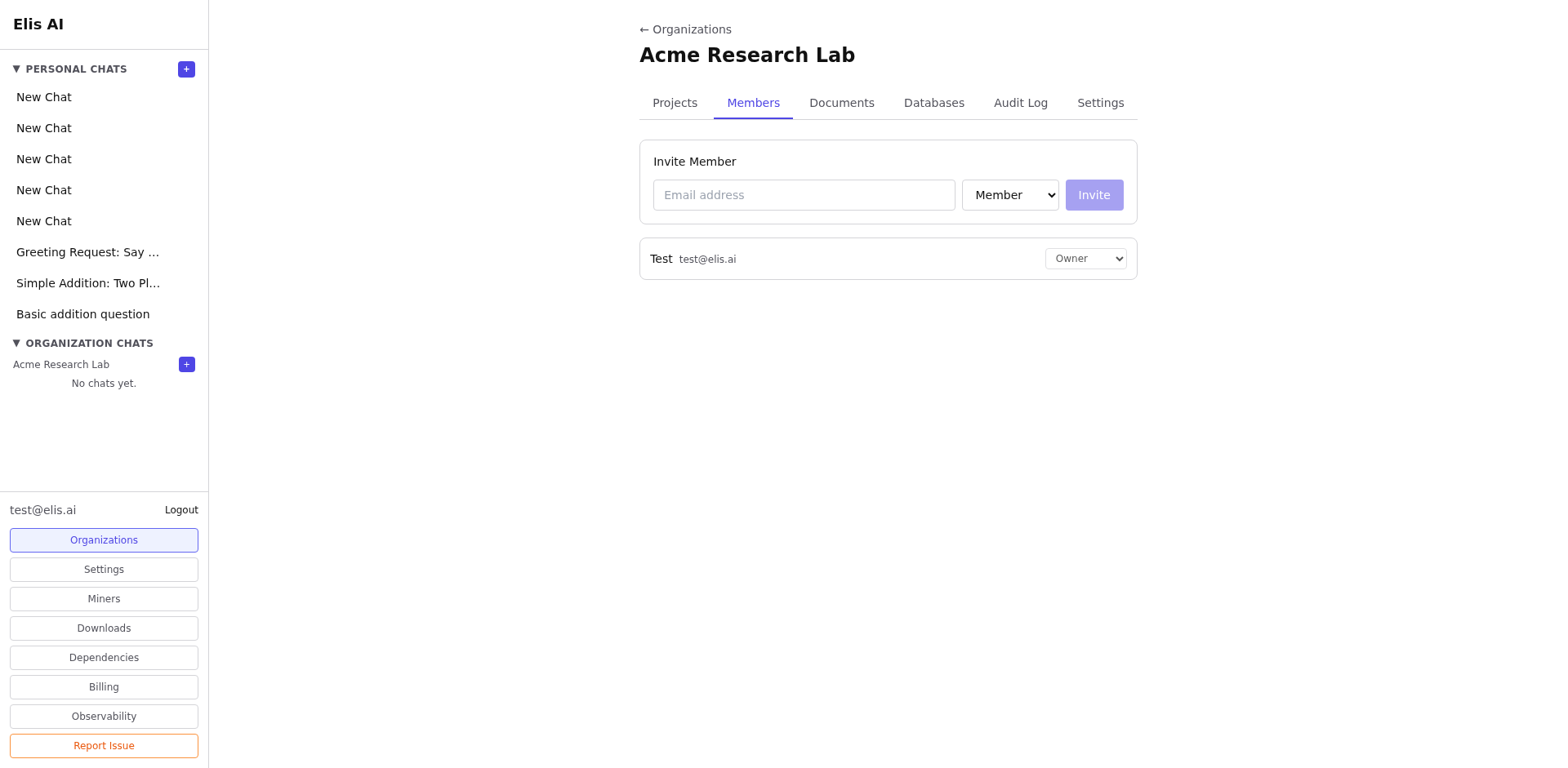
Open the Members tab
Navigate to your organization and select the Members tab to see current members and their roles.
2
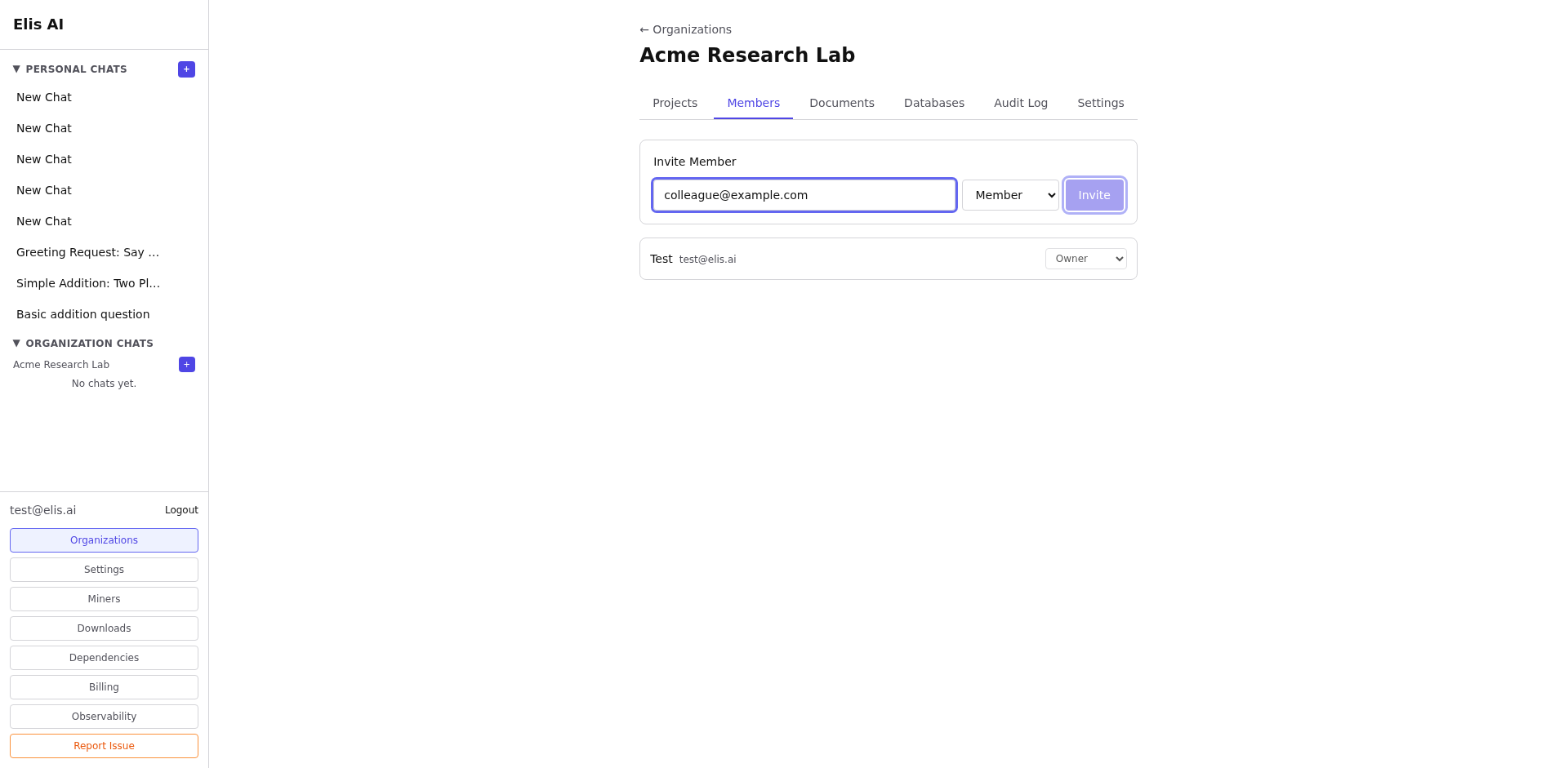
Invite a new member
Click Invite Member. Enter the person's email address and select a role (viewer, member, developer, admin).
3
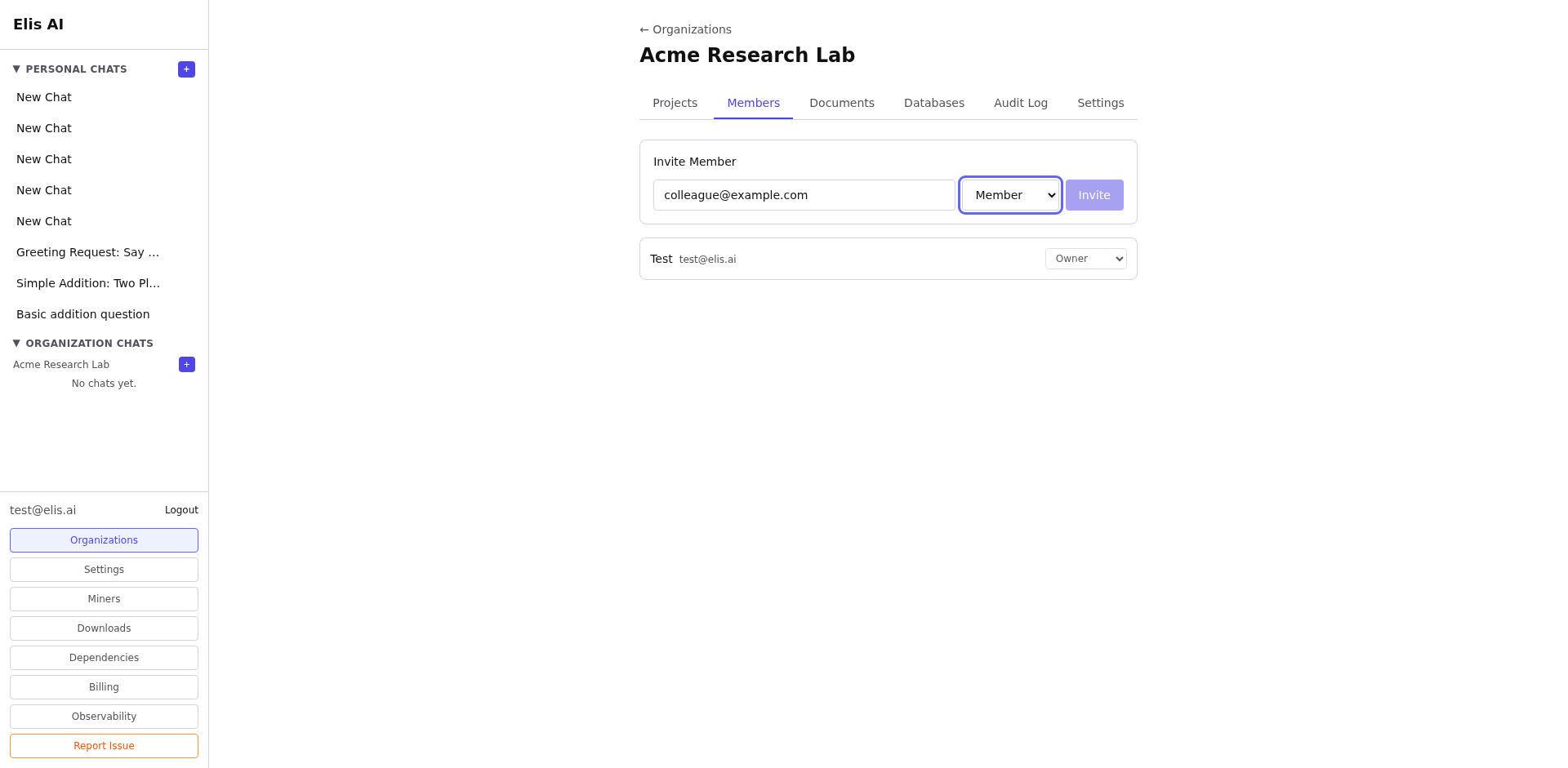
Change a member's role
Click the role dropdown next to any member to change their access level. Roles range from Viewer (read-only) to Admin (full control).
4
Remove a member
Click the remove button next to a member to revoke their access. They'll lose access to all org resources immediately.
Tip:Only admins and owners can invite or remove members. Use the developer role for team members who need API access but shouldn't manage the org. For dedicated clusters, continue with the dedicated user management tutorial for seat reservations, pending signup invites, and cluster-aware invite links.